
APN Setup Guide
Download the Profile
Network Setup
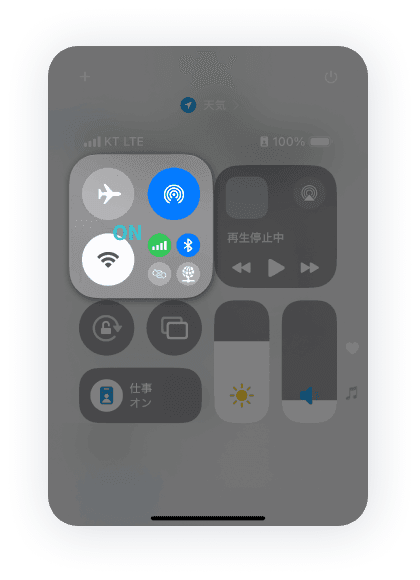
From the Home screen, swipe down from the top-right corner to open the Control Center, then turn on Wi-Fi. Make sure your device is connected to the network before proceeding.
QR Code Scan
Click the button for your carrier below to display the QR code, then scan it using the Camera app on your device.
Start Download
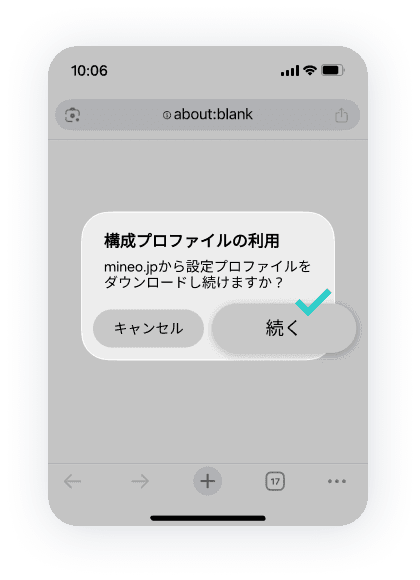
When the download prompt appears, tap 'Continue'.
This message may not appear depending on your iOS version.
Allow Download
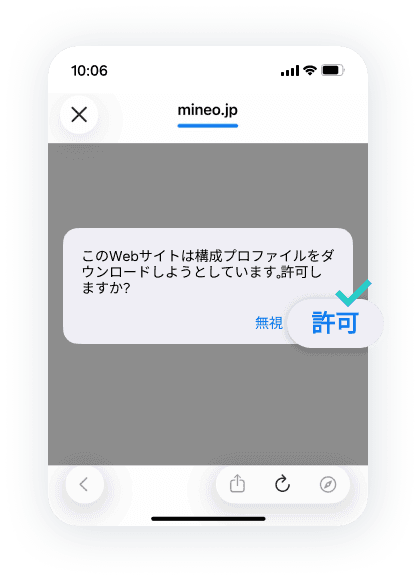
When the download permission prompt appears, tap 'Allow'.
Done
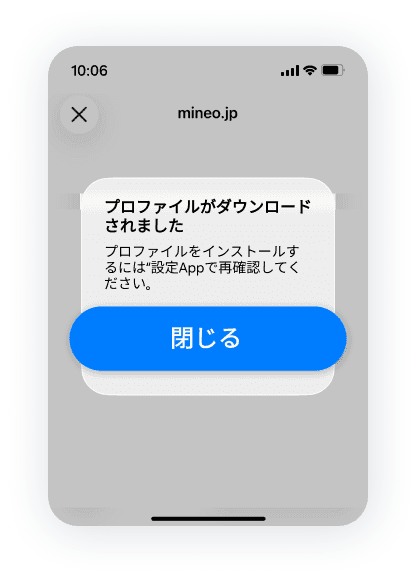
Once the download is complete, tap 'Close' to finish preparing for installation.
Install the Profile
Go to the Installation Screen
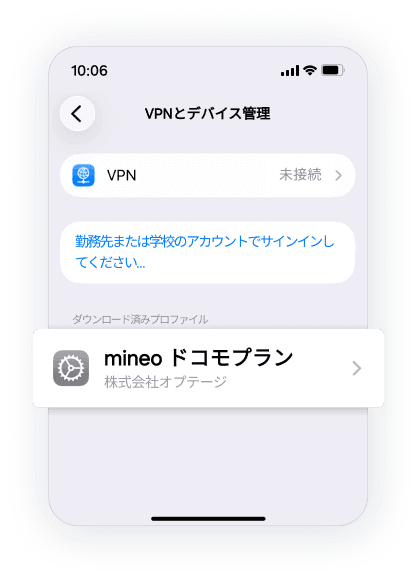
Go to Settings → General → VPN & Device Management → Downloaded Profile, then select the downloaded profile to open the installation screen.
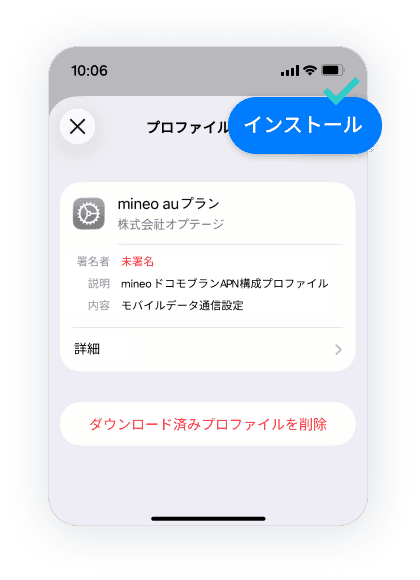
Install the Profile
Tap 'Install' in the upper-right corner of the installation screen.
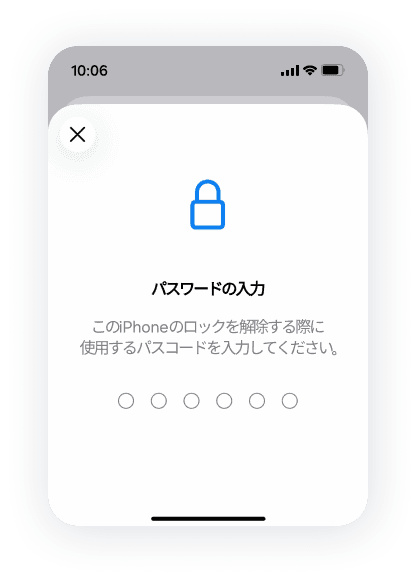
Enter Your Passcode
When prompted, enter the device passcode you have set to install the profile.
This screen will not appear if you have not set a device passcode.
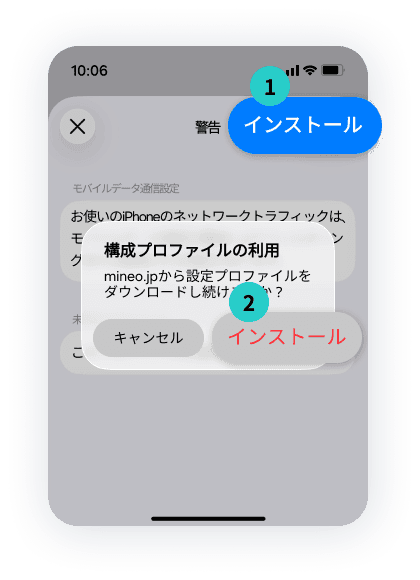
Allow Installation
On the warning screen, tap 'Install' in the upper-right corner. When the profile installation message appears, select 'Install'.
Done
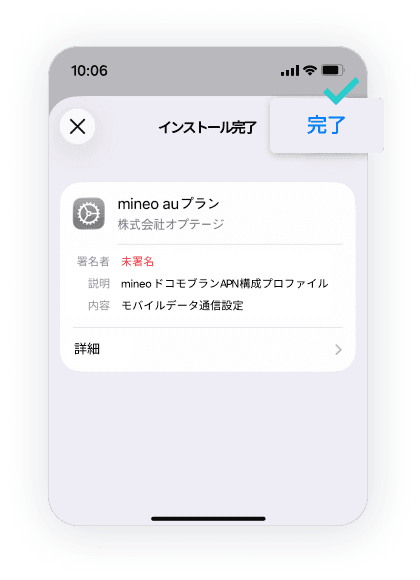
Once installation is complete, you'll return to the installation screen where 'Profile Installed' is displayed. Tap 'Done' in the upper-right corner.
Verify Installation
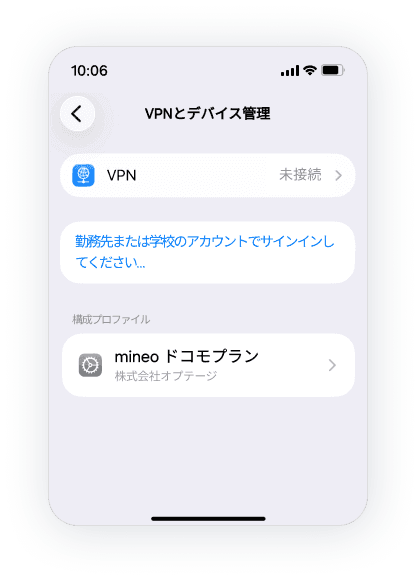
Go to VPN & Device Management and verify that the profile appears under Configuration Profile.
Initial Setup FAQ